Engine Registry Overview
Dryad Engine uses a registry system to manage all the moving parts of your game. Think of it as a central directory where different systems register themselves so they can talk to each other.
This page explains each registry type in simple terms. For complete lists and examples, see the linked reference pages.
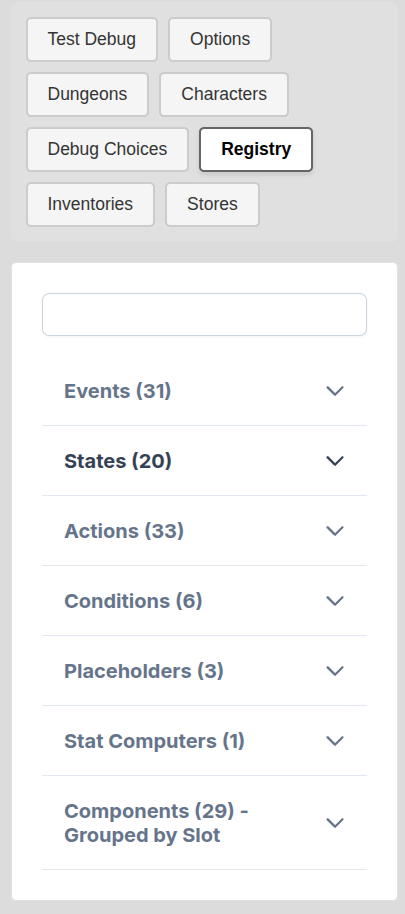
Viewing the Registry In-Game
During development, you can inspect all registered items in real-time using the Debug Registry panel. When you playtest your game from the Engine Editor, the debug panel is visible automatically. Navigate to the Registry tab to see all registered emitters, states, actions, conditions, placeholders, stat computers, and components - including any custom ones you've added via scripts.
Lifecycle Emitters
What they are: Hooks that let you run code when something happens in the game.
How they work: The engine broadcasts emitters like "a character was created" or "the player entered a room". Your scripts can listen for these and react to them.
Example use cases:
- Play a sound when entering a dungeon
- Modify item prices when a shop opens
- Track statistics when characters level up
// Listen to a built-in emitter
game.on("dungeon_enter_after", (dungeonId, roomId) => {
  // Your code runs whenever a dungeon is entered
});

// Register a custom emitter
game.registerEmitter("battle_started");

// Listen to your custom emitter
game.on("battle_started", (enemyId) => {
  console.log("Battle with", enemyId);
});

// Trigger your custom emitter from anywhere
game.trigger("battle_started", "goblin");
Reference: Game Emitters
States
What they are: Named values that control the UI and game behavior.
How they work: States are like switches or dials that different parts of the engine read. Changing a state can show/hide UI panels, enable/disable features, or switch between game modes.
Example use cases:
- Show the character sheet panel
- Disable the UI during cutscenes
- Switch between exploration and battle modes
// Register a custom state
game.registerState("battle_mode", false);

// Read a state
let isBattle = game.getState("battle_mode");

// Change a state
game.setState("battle_mode", true);

// Built-in states work the same way
game.setState("progression_state", "character");  // Open character sheet
game.setState("disable_ui", true);                // Lock the UI
Reference: States
Actions
What they are: Named commands that do things in the game.
How they work: Actions are reusable pieces of logic. You can trigger them from dialogue scripts, item effects, or your own code. Built-in actions handle common tasks like giving items, changing scenes, or modifying flags.
Example use cases:
- Give the player gold
- Start a scene or dialogue
- Add/remove items from inventory
// Register a custom action
game.registerAction("heal_party", () => {
  for (let char of game.getParty()) {
    char.setResource("health", char.getStat("health"));
  }
});

// Trigger your custom action
game.execute({ heal_party: true });

// Trigger a built-in action (= sets, += adds, -= subtracts)
game.execute({ flag: "gold += 100" });
Instead of a bare function you can register an object to control when the action runs:
game.registerAction("my_action", {
  action: (value) => { /* ... */ },
  eventDelayed: true,   // wait for the player's click instead of firing as the paragraph renders
  onGameLoad: true,     // re-run when a save is restored
  choiceModifier: (choice, value) => { /* rewrite the choice's label or availability */ },
});
On a choice, every eventDelayed action runs after the choice's other keys, whatever order they are written in – {enter: "19", flag: "door_open = 1"} sets the flag before room 19's events read it.
A choiceModifier runs while the choice is built. To relabel it, either prefix choice.name (a static marker) or assign choice.nameComputed = computed(() => ...) when the label depends on live state (a price, a resource). Build from the raw choice.name — the engine passes every label, modifier-built or not, through the label resolver afterwards, so |placeholders|, if{} logic and text styles come out resolved either way. choice.isAvailable = computed(() => ...) greys the choice out.
The label is only part of the row. To restyle the whole option – its number, the hover arrow and the label – give it a class with choice.className, a string or a computed:
game.registerAction("require_corruption", {
  choiceModifier: (choice, value) => {
    const unlocked = computed(() => game.getCharacter("mc").getStat("corruption") >= value);
    choice.isAvailable = unlocked;
    choice.className = computed(() => unlocked.value ? "void-choice" : "");
  },
});
.choice-list .choice.void-choice { color: #c084fc; }
.choice-list .choice.void-choice:hover { color: #e9d5ff; }
.choice-list .choice.void-choice .choice-number { text-shadow: 0 0 6px #c084fc; }
Write the selectors this specific (row class plus :hover) so they win over the engine's own visited and hover colors.
Gates: aborting a paragraph
A gate runs before its paragraph renders and before any of that paragraph's actions fire. Return a scene id and the paragraph is abandoned — its prose is never shown, its sibling actions never run, and the reader goes to that scene instead. Return false and the paragraph plays out normally.
This is how you build a check that branches the reader away on failure:
game.registerAction("check", {
  gate: (spec, ctx) => {
    const mc = game.getCharacter("mc");
    if (mc.getStat("strength") >= 6) return false;    // passed — carry on
    return game.resolveSceneId("shift:1").sceneId;    // failed — jump to the next block
  },
});
%
You set your shoulder to the boulder and heave it aside.{check: "strength#6", flag: "boulder_moved = 1"}
%
You heave until your vision swims. It does not budge.
On a pass the first block renders and boulder_moved is set. On a fail the reader lands on the second block having never seen the first, and boulder_moved stays unset — a gate aborts the whole paragraph, not just the prose.
shift:1 means "same row, next block, first paragraph", so in the visual editor the failure branch is simply the next % column in the same row.
Gates only run on scene paragraphs. A gated action placed on a choice is dispatched through
actionlike any other and aborts nothing.
Describing the value for the editor
Give an action a help line, a value description and examples, and the dungeon content editor checks every use of it as you type: an id that is not in its data file is underlined, with a "Did you mean…?" fix. While you type, the help and the examples show beside the suggestions.
game.registerAction("give", {
  help: "Give an item to a character.",
  value: { pair: [{ ref: "character" }, { ref: "item_templates" }] },
  examples: ['{give: "alice->sword"}', '{give: "bob->potion"}'],
  action: (spec) => { /* ... */ },
});
Keep help to what the action does; show how to write it in examples, each written exactly as content would.
{give: "alice->swrod"} Item 'swrod' not found → sword
ref names the data file the id lives in – the same name game.getData() takes, so a plugin's own data works too ({ ref: "plugins_data/my_plugin/battles", label: "Battle" }). The other shapes cover the usual value grammars:
| Shape | Value it describes |
|---|---|
{ ref: "records" } | one id |
{ words: ["left", "right", "both"] } | one of these words |
{ list: { ref: "records" } } | "a, b, c" |
{ pair: [{ ref: "character" }, { ref: "item_slots" }] } | "alice->ring" |
{ ops: { target: { ref: "character" }, key: { ref: "character_stats" } } } | "alice.brawn += 2" (what game.parseOpsSpec() reads) |
{ targeted: { ref: "character_statuses" } } | "alice->blessed & !cursed" (what game.parseTargetedSpec() reads) |
{ oneOf: ["boolean", { ref: "records" }] } | true or an id |
{ fields: { id: { ref: "character" } } } | the object form { id: "alice" } |
"scene", "condition", "number", "text", "any" | a scene id, a condition, … ; "any" is not checked |
The editor reads your scripts without running them, so write the description as a literal or a const – a value built at runtime is not seen. An action without a value is still known by name; only its value goes unchecked. Without help, the comment right above the call is shown instead. Every type is in types.d.ts (ValueSpec, RefSpec).
Reference: Actions
Conditions
What they are: Named checks that return true or false.
How they work: Conditions let you test game state in a reusable way. Use them in dialogue branches, to show/hide choices, or anywhere you need to check "is this true?"
Example use cases:
- Check if player has enough gold
- Test if a character is in the party
- Verify quest progress
// Register a custom condition (its id starts with _)
game.registerCondition("_can_afford", (amount) => {
  let partyInv = game.getInventory("_party_inventory");
  return partyInv.getCurrencyAmount("gold") >= amount;
});

// Used in dialogue: if{_can_afford(100) = true}You can buy this.fi{}
A third argument describes it for the editor, as value does for an action: { help: "…", args: [{ ref: "item_templates" }], examples: ["_can_afford(100) = true"] } checks each (…) argument. registerPlaceholder takes the same.
Reference: Conditions
Placeholders
What they are: Dynamic text substitutions.
How they work: Placeholders let you insert values into text. Write |placeholder_name| in your dialogue or descriptions, and the engine replaces it with the actual value at runtime.
Example use cases:
- Show character names: "Hello, |player_name|!"
- Display resource values: "You have |flag(gold)| gold"
- Insert item names in descriptions
// Register a custom placeholder
game.registerPlaceholder("player_name", () => {
  return game.getCharacter("mc").getName();
});

// Used in text: "Welcome back, |player_name|!"
Reference: Placeholders
Stat Computers
What they are: Functions that calculate derived character stats.
How they work: Some stats depend on other stats or complex formulas. Instead of storing them directly, you register a function that computes the value whenever it's needed. The function returns an object with stat names and their bonus values.
Example use cases:
- Calculate damage from strength and equipment
- Derive max health from level and constitution
- Compute defense from armor pieces
// Register a stat computer
game.registerStatComputer("strengthBonus", (character) => {
  const strength = character.getStat("strength") || 0;
  return {
    attack: strength * 2,
    carry_capacity: strength * 10
  };
});

// Attach it to a character template in the editor:
// computed_stats: ["strengthBonus"]

// Then access the computed stats normally
let mc = game.getCharacter("mc");
let attack = mc.getStat("attack");  // Includes the strength bonus
Reference: Computed Stats
Components
What they are: Vue components plugged into UI slots.
How they work: The engine UI has designated "slots" where components can appear. You register your own components into these slots to add tabs, buttons, panels, or entirely new screens. Slots automatically pass context props from the parent component to your custom component.
Example use cases:
- Add a custom tab to the character sheet
- Insert a button into the toolbar
- Add action buttons to ability cards
const { vue, game } = window.engine;
const { defineComponent } = vue;

// Create a component that uses context props from the slot
const UseAbilityButton = defineComponent({
  props: ['abilityId', 'characterId'],  // Received from slot context
  setup(props) {
    function useAbility() {
      const character = game.getCharacter(props.characterId);
      character?.useAbility(props.abilityId);
    }
    return { useAbility };
  },
  template: /*html*/`<button @click="useAbility">Use</button>`
});

// Register into a slot
game.registerCustomComponent({
  id: "use-ability-button",
  slot: "ability-card-footer",
  component: UseAbilityButton
});
Reference: Components Export and Custom Vue Features
How It All Connects
These systems work together to make your game extensible:
- Event Emitters notify you when things happen
- States control what the UI shows
- Actions execute game logic
- Conditions gate content based on game state
- Placeholders make text dynamic
- Stat Computers derive calculated values
- Components extend the UI
Your scripts can register new items in any of these registries, letting you extend the engine without modifying its core code.
Next Steps
- Game Emitters - Full emitter reference
- States - All built-in states
- Actions - Action reference
- Conditions - Condition reference
- Vue Components - Creating custom components