Dungeon Template
Most authors should start with the Visual Editor. The Google Docs template below is for collaborative writing, Docs-native features (comments, suggestions, revision history), or teams already working in Docs.
Google Docs Template (Collaborative Authoring)
Dryad Engine comes with a ready‑to‑use Dungeon Template Google Doc that already has the helper script installed and ready to use.
Simply make a copy of that template for your dungeon, and you’ll see extra menus like:
- Content Tables – quickly insert pre‑formatted blocks for rooms, encounters, interactions, events, and scenes.
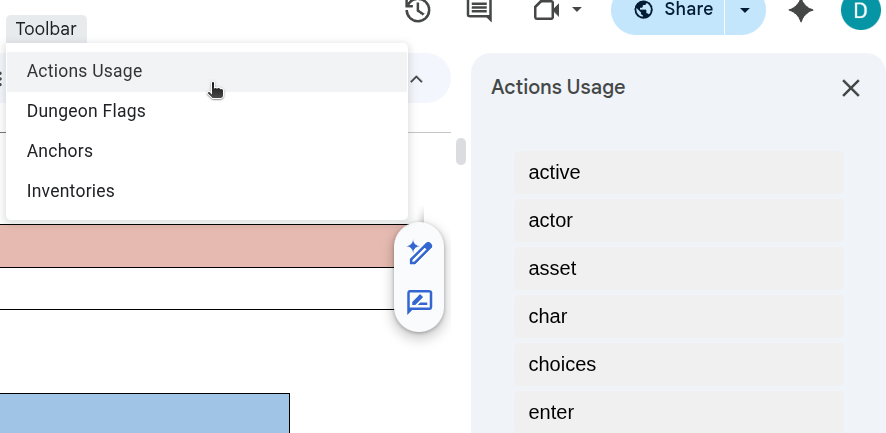
- Toolbar helpers – buttons to scan your document for things like actions, flags, anchors, inventories, helping you keep large dungeons consistent.
- Quest helpers – templates for quest titles, stages, and goals, so your quest logs line up with how the engine expects data.
Once you’ve copied the template, you build content mostly by clicking menu items instead of hand‑typing every tag.
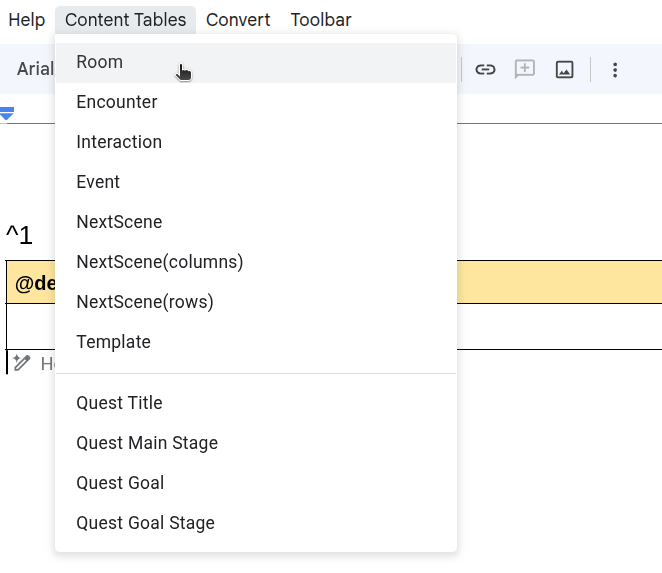
Copying and Preparing the Template Document
To start using the template for your own game:
- Open the template Google Doc by following this link: Dungeon Template.
- In the menu, go to File → Make a copy to create your own editable copy.
- In your copy, insert a first room table via Content Tables → Room.
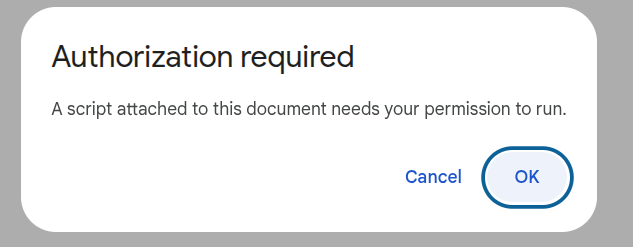
- The first time you do this, Google Docs will show an “Authorization Required” popup – click OK.
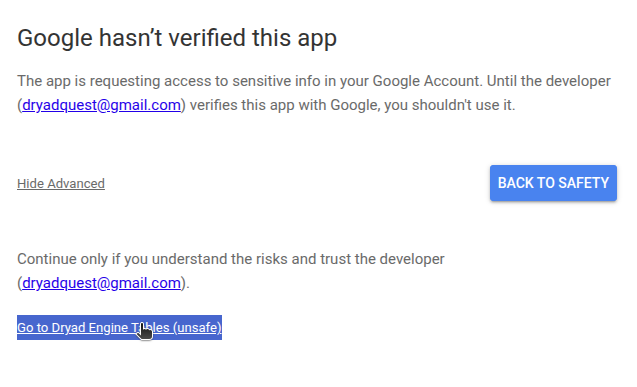
- In the next screen, click “Show advanced” and then “Go to Dryad Engine Tables”.
- Google will warn that the app is “unsafe” because it’s not from the marketplace – this is expected for custom scripts.
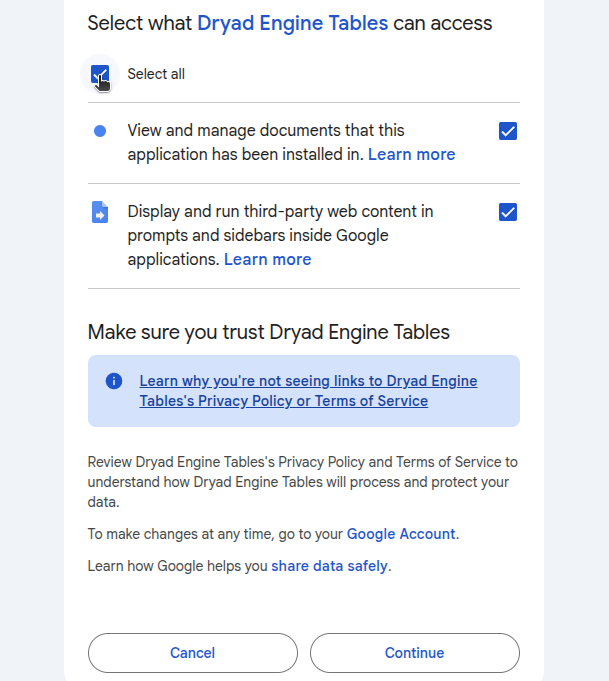
- Tick the “Select all” checkbox and click Continue to grant the script the permissions it needs.
After that, the table will be inserted, and you won’t need to authorize again for this document.
From now on you can freely add rooms, encounters, events, and quest blocks using the custom menus in your copied template.
Bonus: Sidebar Utilities for Keeping Content Consistent
The template also comes with small utility tools that can scan your document and show summaries in a sidebar.
You can quickly see which actions, flags, anchors, and inventories you’ve used so far, helping you:
- Avoid duplicates or typos in important identifiers.
- Spot missing hooks (e.g. a flag you set but never check).
- Keep large dungeons coherent as they grow.
Use these helpers whenever your dungeon starts getting big – they're there to save you from manual tracking in a huge wall of text.
Importing Content into the Engine
Once your dungeon content is ready, you have two options to get it into the engine:
Option 1: Copy and Paste (No Setup Required)
Simply select all content in your Google Doc (Ctrl+A), copy it (Ctrl+C), and paste it directly into the dungeon_content field in your dungeon's config. This works immediately with no additional setup.
Option 2: Google Docs API Integration For a more streamlined workflow where the engine fetches your document directly, you can set up the Google Docs API integration. This requires a one-time setup but allows you to pull content updates without manual copy-pasting.
See Google Docs Integration for setup instructions.