Creating a New Game
Creating Your First Game
1. Create a New Game
Open the Editor and go to New → New Game. You have two options:
Quick Start (Recommended): Click the ”Quick Start” banner at the top. Pick a Template, enter your Game Name, Author, and Starting Dungeon Name, then press ”Create Game”. You'll have a working game with a dungeon, rooms, and content ready to edit immediately.
From Scratch: Fill in the manifest form below the banner (game name, ID, description, etc.) and press ”Save New Game”.
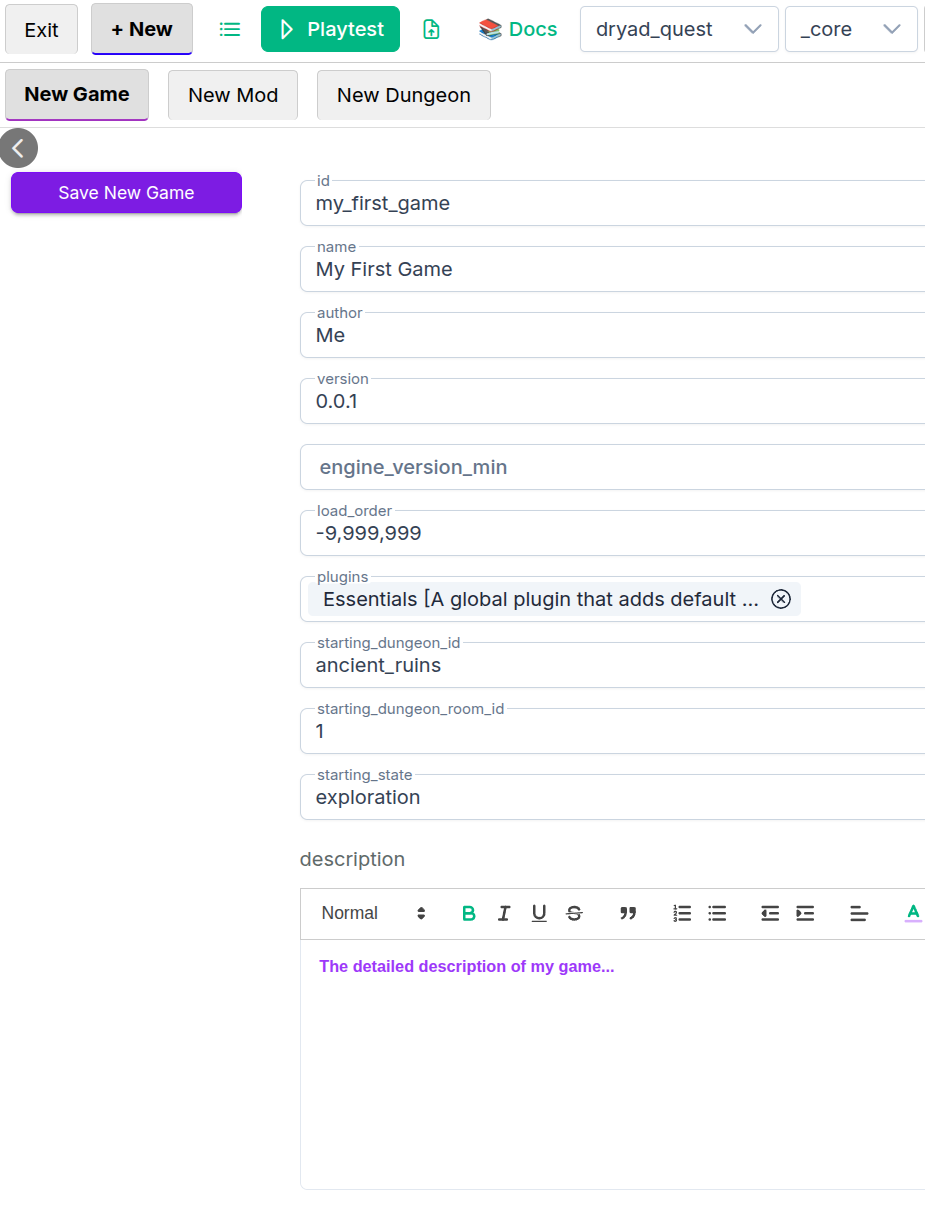
Either way, Dryad Engine will automatically create two folders inside /assets folder.
2. Your Game Folders
You’ll see:
games_files/[your_game_id]/_core- This is where all of your game data lives.
- You’ll populate it by filling in forms in the editor (characters, items, stats, dungeons, etc.).
games_assets/[your_game_id]/_core- This is where you put your game assets – images, sounds, custom scripts and other files.
- These assets can be linked to your game through the editor’s built‑in file browser.
The games_files folder follows a specific structure that the engine understands.
The games_assets folder is more flexible: the engine can reference any assets there – and even assets from other games – as long as you point to them from your data.
3. Think of Your Game as a Layered Cake
Every game in Dryad Engine is built like a layered cake:
- When you create a new game, you’re creating the base
_corelayer. - Later, you (or your community) can create mods for that game. Each mod becomes a new layer on top of the previous ones.
- A mod can:
- Add new data (new characters, items, dungeons, etc.).
- Overwrite specific properties (for example, change a character’s starting health) while leaving everything else untouched.
This makes it easy to:
- Patch and update your game.
- Build expansions and DLC.
- Let the community create their own mods on top of your work.
4. Creating a Dungeon
Right now, your game exists, but it doesn’t have a real starting point yet.
In the game settings you define:
starting_dungeon_id– which dungeon to start in.starting_dungeon_room_id– which room inside that dungeon is the first one.
Let’s create a very simple starting dungeon now.
4.1 Create the Dungeon
- In the editor, go to New → New Dungeon.
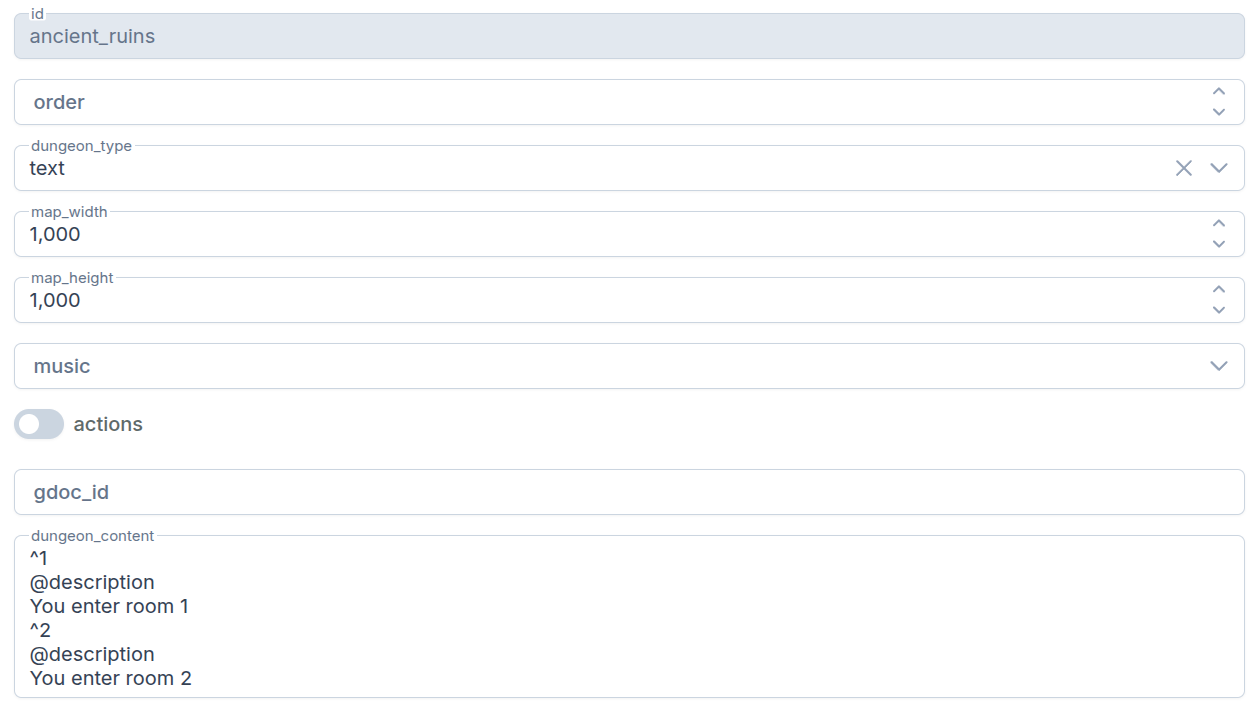
- Fill in the basic info for your dungeon.
- To keep things simple, choose
dungeon_type: text. - Because we don’t have a background image to define the size yet, set the dimensions manually (for this example, use
1000px).
When you save this dungeon, its data will be created under:
games_files/[your_game_id]/_core/dungeons/[dungeon_id]
If you ever decide to completely remove this dungeon, you can delete it safely by removing that folder (just make sure nothing in your game still points to it).
4.2 Add Simple Room Content
Normally you'd write dungeon content in the Visual Editor, but for this first test we’ll set the content directly into 'dungeon_content' field:
^1
@description
You enter room '1'

^2
@description
You enter room '2'
This gives you content for two rooms: one with ID 1 and one with ID 2.
4.3 Create and Connect the Rooms
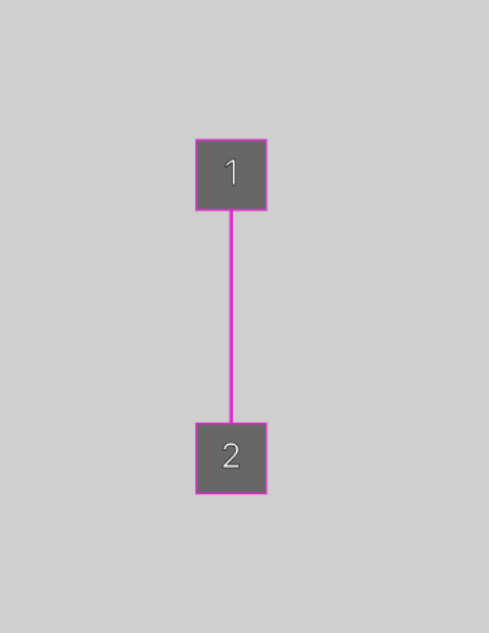
- Go to Dungeons → Rooms in the editor.
- Create two rooms with IDs
1and2(matching the content you just wrote). - Connect the rooms together so you can move between them.
4.4 Make Sure Everything Is in Sync
After writing dungeon content, you should verify that your rooms and encounters match what's defined in the game files.
- In the editor, open your dungeon Config and click "Synchronize Content Document".
- The analyser will compare your content document against the game data and report:
- Unimplemented rooms – rooms referenced in content but not created yet.
- Redundant rooms – rooms in game data that no longer exist in content.
- Missing encounters – encounters referenced in content but not created yet.
- Redundant encounters – encounters in game data that no longer exist in content.
- Follow the prompts to create missing items or delete redundant ones.
- When everything matches, you'll see "Everything is in sync!"
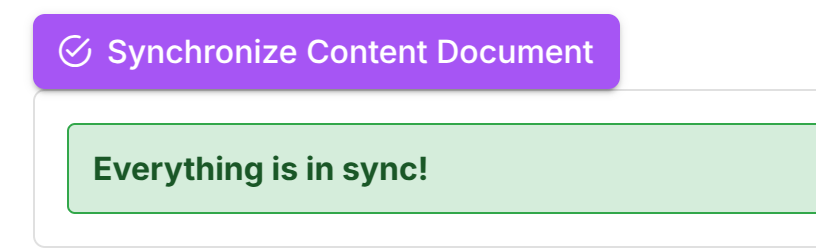
This step is especially useful after editing your dungeon content or adding new rooms and encounters – it catches mismatches before they cause runtime errors.
At this point you have:
- A new game
- A starting dungeon with two rooms (
1and2) - Content describing what happens when you enter each room
Now you're ready to test your game – press the Playtest button in the editor and walk through your tiny dungeon.