Google Docs Integration
Most authors should start with the Visual Editor. The Google Docs integration below is for collaborative writing, Docs-native features (comments, suggestions, revision history), or teams already working in Docs.
Write your dungeon content in Google Docs and import it directly into your game. Great for collaborative writing and working in a familiar editor.
To start, go to Dungeons → Config in the editor and click Google Documents Integration.
Option A: Use an Existing Token
If you already have a token, or you're collaborating with someone who shared theirs:
- Copy the token into the Google Document Integration form (Dungeons → Config tab)
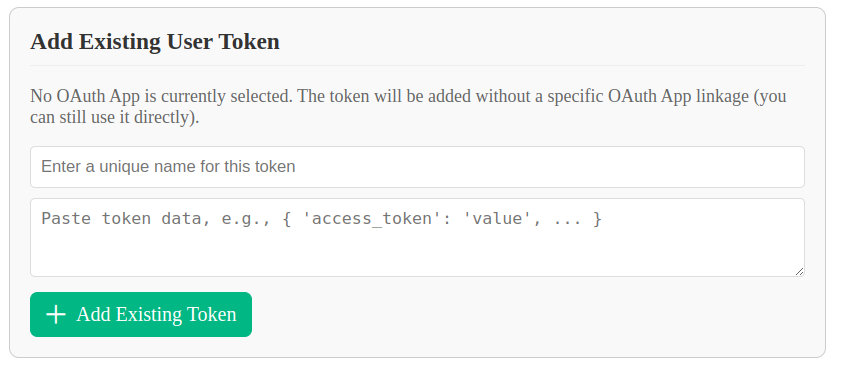
- If you see an error about missing permissions, follow the link in the error message to enable the Google Docs API.
If the token works, skip ahead to Stage 3: Import Your Document.
Otherwise, continue with Stage 1 and 2 below.
Stage 1: Set Up a Google Project
Your credentials are saved locally on your PC only.
- Go to Google Cloud Console
- Create a new project: click the button next to the Google Cloud logo, then click New Project

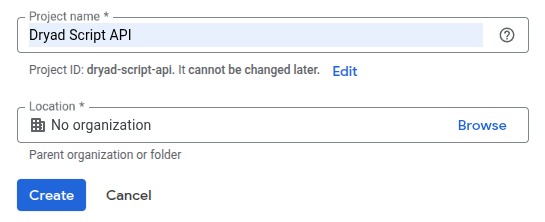
- Enter any project name, skip Location, and click Create
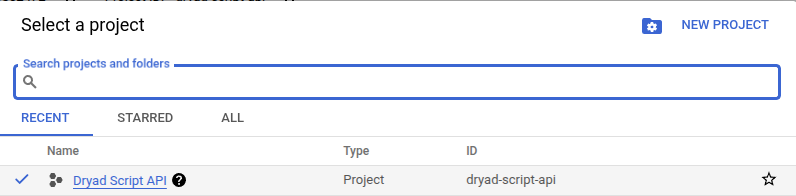
- Select your new project by clicking the button next to the Google Cloud logo
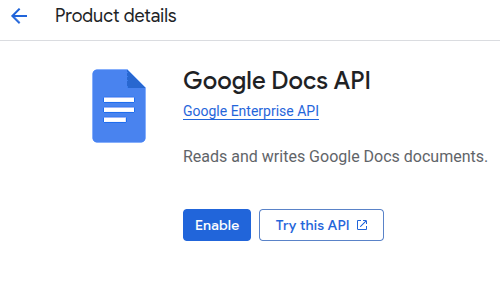
- Go to Google Docs API and click Enable
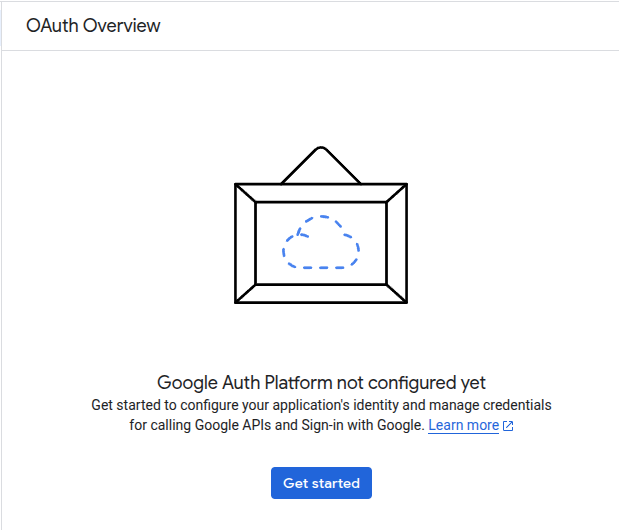
- Go to Google Auth Platform and click Get Started
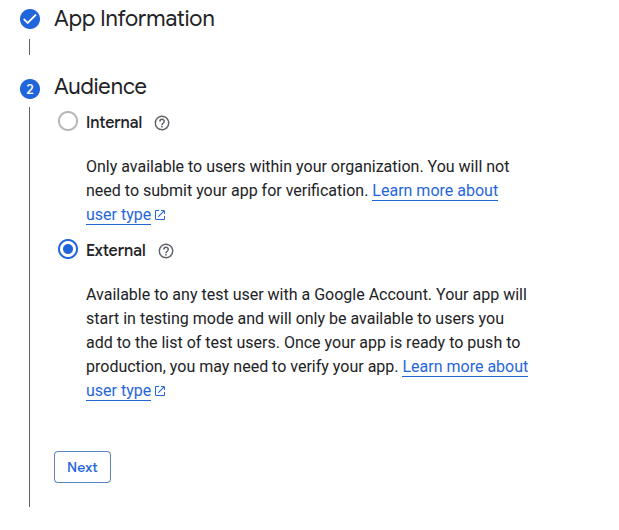
- Fill in the form (App name can be anything). In step 2, choose External
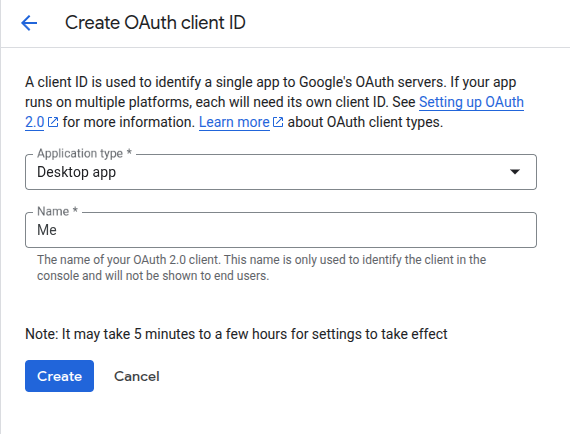
- Click OAuth client to create one

- Choose Desktop app as the Application Type. Name can be anything. Click Create, then Ok
- After creating, download the OAuth client by clicking 'Download JSON' button.
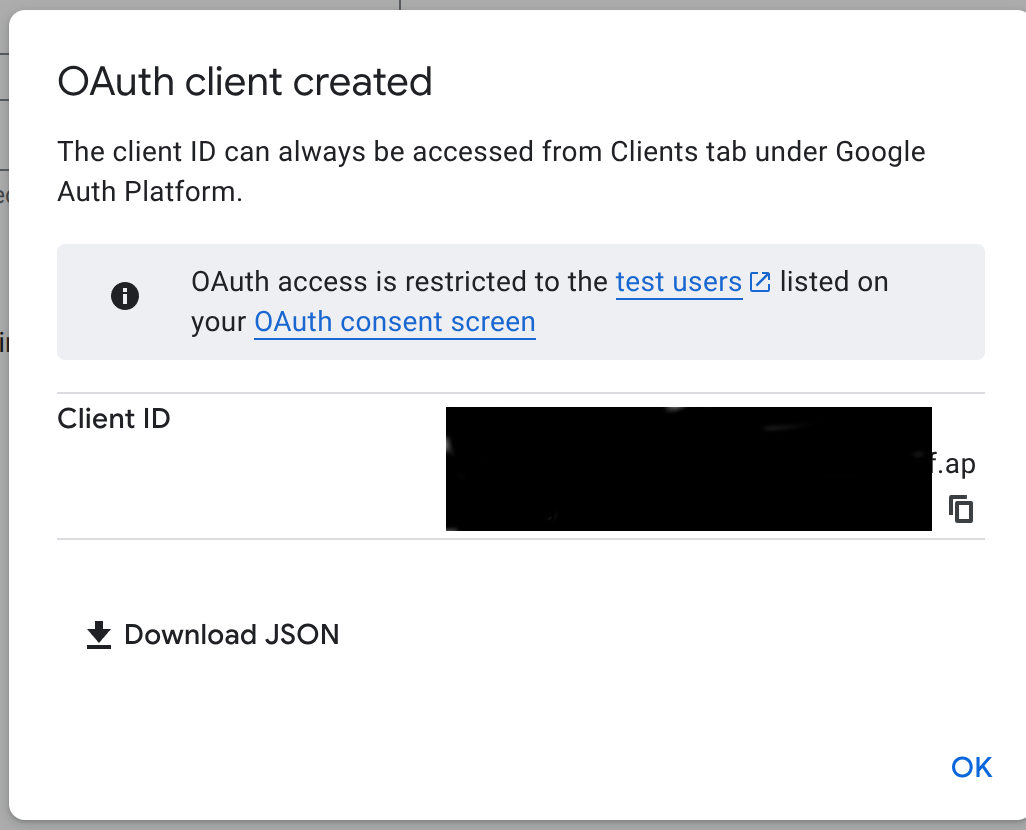
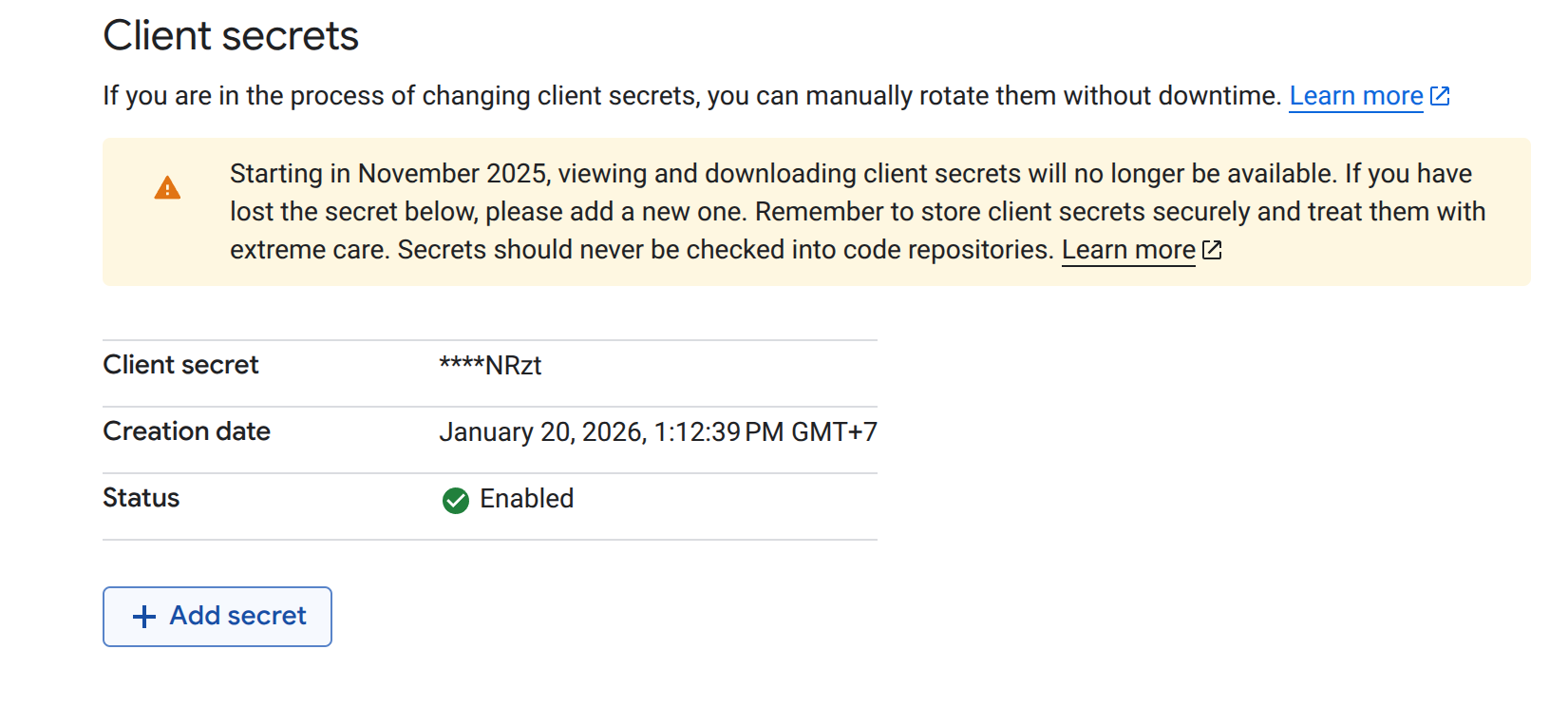
Note: The token is available only once during its creation.
If you forgot to download it, go to Your Auth Clients, choose your client and add a new Client Secret, then download it.
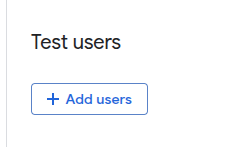
- Go to Auth Audience and click Add users. Add the Google account you use for Google Docs (can be the same email you registered with). Ignore any warnings about the user not being added.
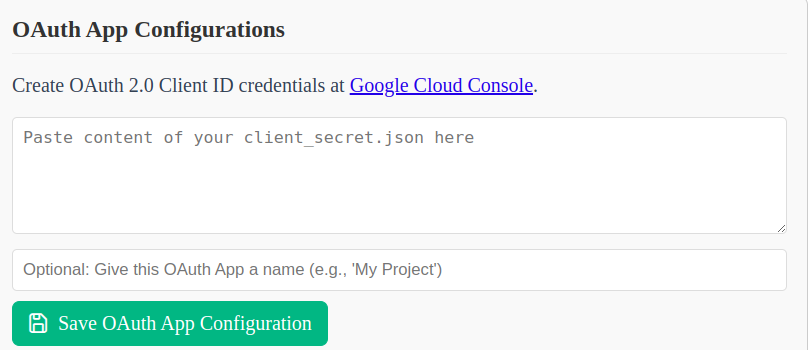
- Back in the game editor, go to Dungeons → Config → Google Document Integration → OAuth Apps. Open the
client_secretfile you downloaded in step 10, copy its contents into the form, and click Save OAuth App Configuration
Stage 2: Create a Token
- Open the Create New Token tab and click Start Authentication with Google. A browser window will open.
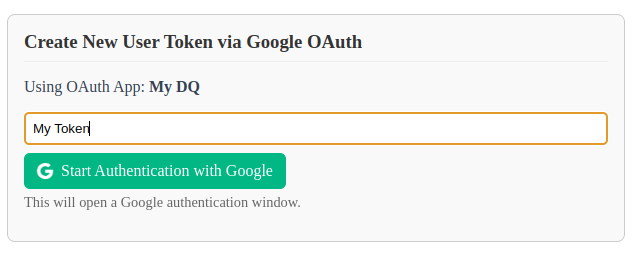
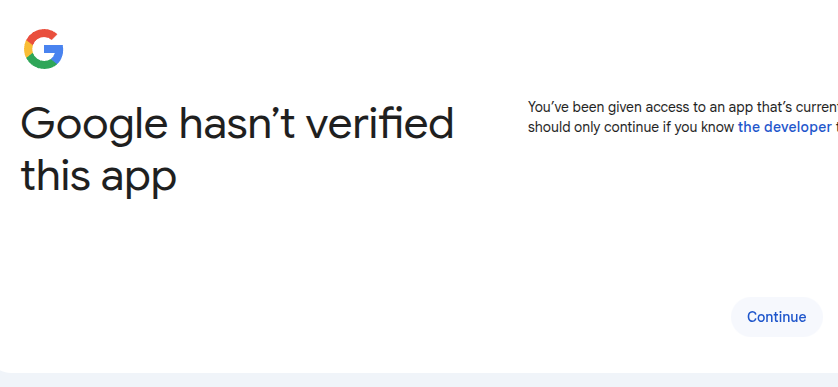
- Choose your Google account and click Continue through the permission screens. Make sure the checkbox to access your Google Docs is enabled.

Stage 3: Import Your Document
You're ready to fetch Google Docs directly into your game!
Make sure you have the correct token selected in Google Document Integration → User Tokens. You can have multiple tokens for different Google accounts (useful for collaboration).
- Enter the Google Document link or ID in the
gdoc_idconfig field

- Click Fetch Google Document. The content will be imported into the
dungeon_contentfield.

Note: You only need to set up your token once (Stages 1 & 2). After that, you can use it for all your games.