File Browser
The file browser is used throughout the engine editor to select assets like images, audio, videos, javascript, css and other files.
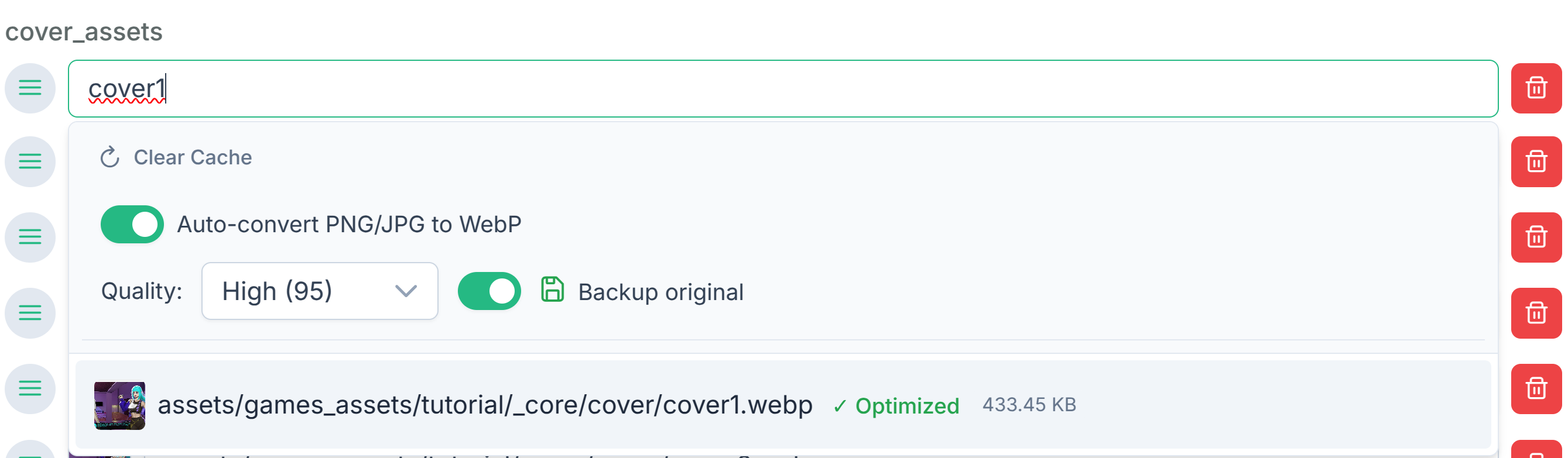
Autocomplete Search
You don't need to type the full file path. The file browser automatically searches for assets in:
assets/games_assets/- Your game's assetsassets/engine_assets/- Built-in engine assets
Just start typing part of the filename and matching results will appear.
WebP Conversion
Image files can be automatically converted to WebP format for smaller file sizes. The WebP settings appear in the file picker dropdown for image fields.
When Backup original is enabled, the original images are saved to assets/backup/ before conversion.
Search Settings
Configure file search behavior in Dev > Dev Settings:
| Setting | Description |
|---|---|
asset_folders | List of folders in games_assets where your assets are located. Only these folders are included when exporting. |
narrow_file_search | When enabled, only searches in folders listed in asset_folders. |
ignore_engine_assets | When enabled, excludes files from engine_assets folder in search results. |
Cache
Search results are cached for performance. After adding new files to your assets folder, click the Clear Cache button in the file picker dropdown to refresh the file list.